Introduction
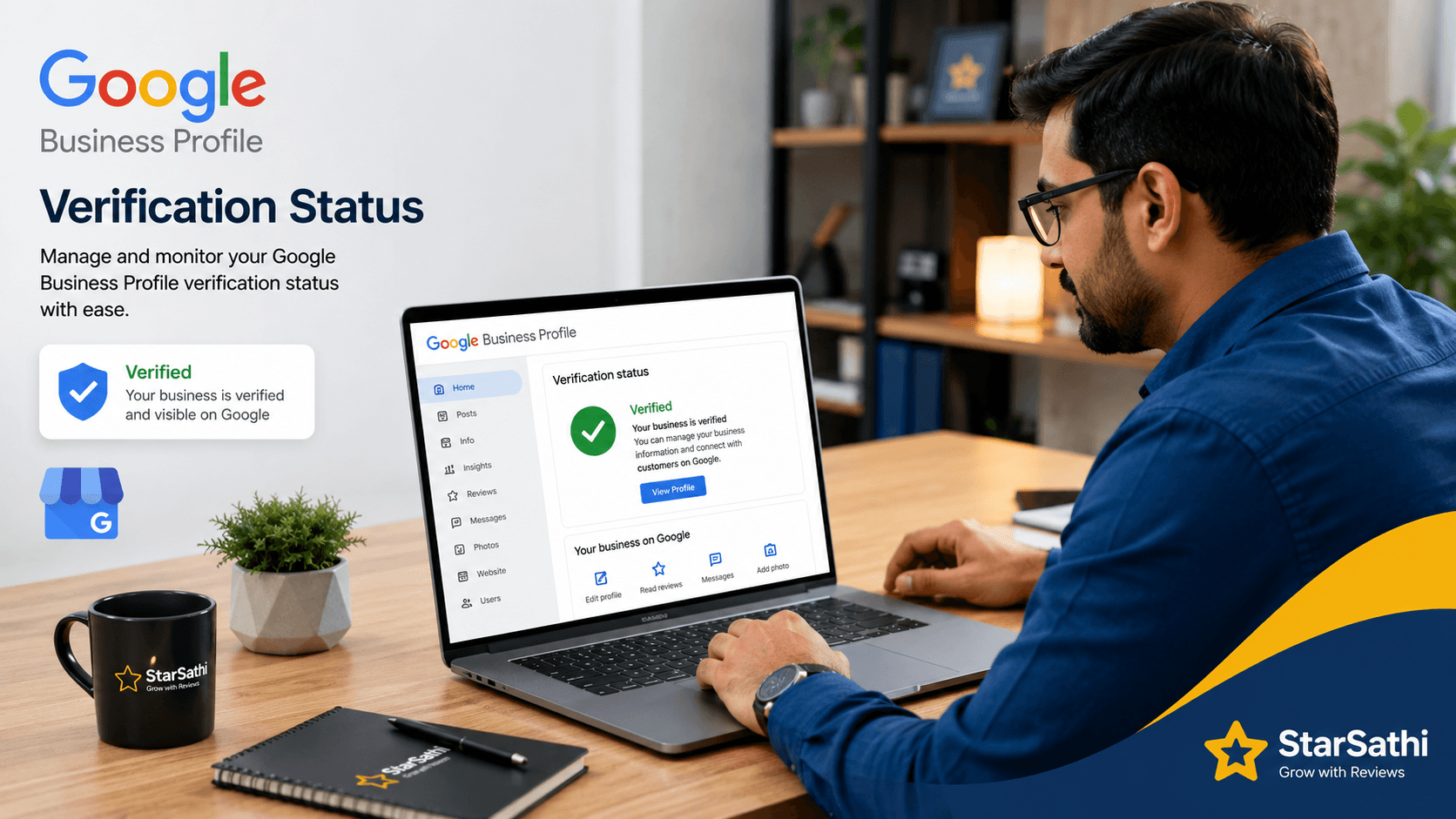
Verifying your Google Business Profile is the first and most crucial step to appearing in local search results. Without verification, your business won't show up on Google Maps or in local search results. This comprehensive guide will walk you through every step of the verification process.
Google Business Profile verification confirms that you are the legitimate owner or manager of the business. It's essential for maintaining control over your business information and responding to customer reviews.
Step 1: Claim Your Business
The first step is to claim your business on Google. Here's how:
- Go to Google Business Profile and click "Manage Now"
- Search for your business name in the search bar
- If your business appears, click "Claim this business"
- If not, click "Add your business to Google" to create a new listing
- Enter your business details carefully - this information will appear on Google Maps
Step 2: Choose Verification Method
Google offers several verification methods depending on your business type and location:
📮 Postcard by Mail
Most common method. Google sends a postcard with a verification code to your business address. Takes 3-5 business days.
📱 Phone Verification
Instant verification via phone call or SMS. Available for some businesses with active phone numbers.
✉️ Email Verification
Quickest method if available. Google sends a verification link to your business email.
🎥 Video Verification
Required for some businesses to prove physical location. Record a short video showing your business.
Step 3: Enter Verification Code
Once you receive the verification code (either by postcard, phone, or email), follow these steps:
- Log in to your Google Business Profile dashboard
- Look for the verification notification
- Enter the 5-digit verification code
- Click "Verify" - your profile will be verified instantly
- You'll receive a confirmation email from Google
Step 4: Complete Your Profile
After verification, it's time to optimize your profile for maximum visibility:
✅ Essential Information to Add:
- Business Hours: Include regular hours and special holiday hours
- High-Quality Photos: Upload at least 10 professional photos of your business, products, and team
- Services & Products: List all services with detailed descriptions and prices
- Business Attributes: Add attributes like wheelchair accessible, outdoor seating, free Wi-Fi
- Contact Information: Phone number, website, and social media links
Step 5: Start Collecting Reviews
Now that your profile is verified and complete, it's time to build your online reputation:
- Share your Google review link with customers
- Send follow-up emails after purchases
- Train your team to ask for reviews
- Respond to all reviews - positive and negative
- Monitor your profile regularly
💡 Pro Tip
Keep your Google Business Profile updated with fresh photos, posts, and respond to all reviews - positive and negative. This signals to Google that your business is active and engaged, which can improve your search rankings.
📌 Quick Tips for Success
- Verify your profile as soon as possible to start appearing in search results
- Update business hours during holidays and special events
- Post weekly updates to keep your profile active and engaging
- Respond to all customer reviews within 24 hours